Ads Inspector Settings
Overview
The AdsSettings asset controls the behavior for all advertising networks. The inspector is divided into logical sections.
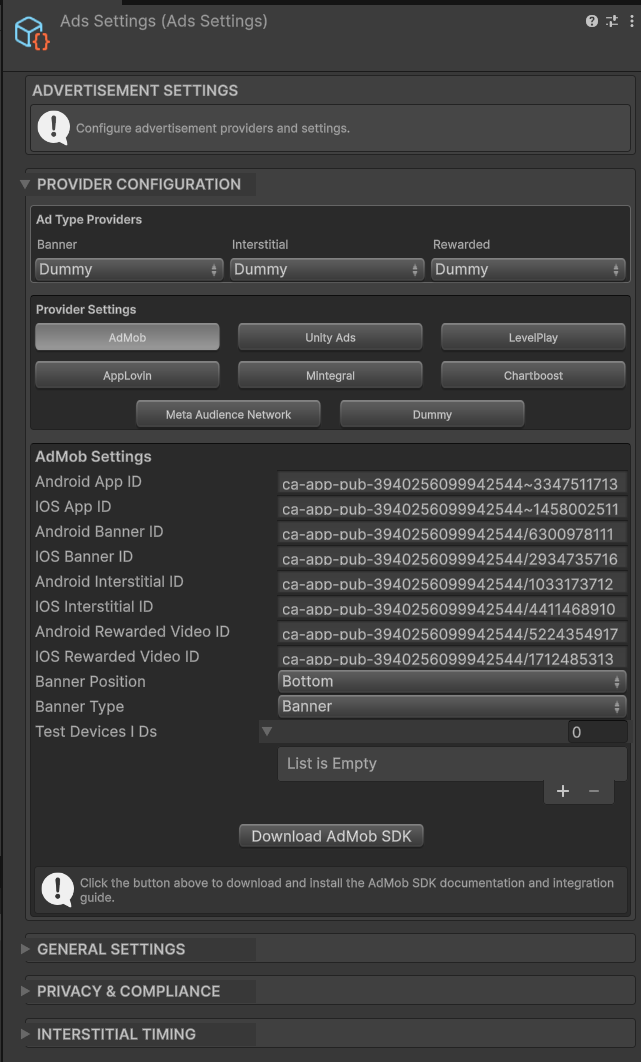
AdsSettings Inspector
Provider Configuration
Ad Type Providers
Select which provider handles each ad format.
- Banner / Interstitial / Rewarded: Choose the active provider (e.g., AdMob, Unity Ads) or select
Disable/Dummy.
Provider Settings
A dynamic tabbed interface for configuring specific networks.
- Tabs: Click the buttons (e.g., “AdMob”, “Unity Ads”) to switch between provider configurations.
- Download SDK: If a provider is supported but missing an SDK, a button will appear to download it.
- Fields: Enter the specific App IDs and Unit IDs for the selected provider.
General Settings
- Test Mode: Forces development mode (often using test IDs) to prevent invalid traffic.
- System Logs: Enables verbose logging in the Console for debugging.
- Ads On Start: Automatically attempts to load the first batch of ads when the game launches.
Privacy & Compliance
Configure consent and transparency flows.
- GDPR Enabled: Enables the consent dialog for European users.
- IDFA Enabled: Requests App Tracking Transparency permission on iOS.
- Description: Text shown to users when requesting tracking permission.
- Privacy / Terms Links: URLs for the legal buttons in the consent dialog.
Interstitial Timing
Control the frequency of interstitial ads.
- Auto Show Interstitial: If enabled, the system automatically triggers interstitials based on the timers below.
- First Delay (s): Wait time before the very first interstitial (first session).
- Subsequent Delay (s): Wait time before an interstitial can appear in subsequent sessions.
- Min Show Delay (s): Minimum cooldown between two consecutive interstitials.